

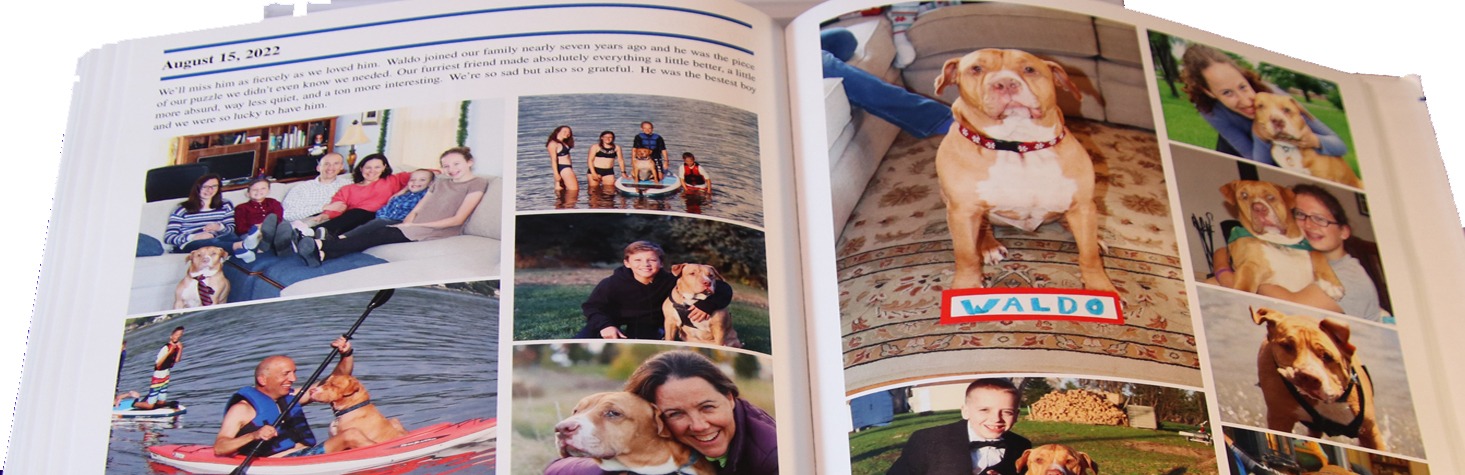
your memories shouldn’t live only on social media
Social media helped you share life’s important moments. But those memories live on platforms you don’t control.

Downloading your data gives you a copy of every photo, caption, and post you shared so you can preserve them for the future.
Already downloaded your archive?
Download Your Facebook or Instagram memories
Most social media platforms will allow you to download every photo, caption, and original post you shared.  If your feed is where you keep your memories of travel, kids, celebrations, and family, that history is not guaranteed to be there forever.

When you download your data, you own it and control the future of your past.
If it mattered enough to share, it matters enough to keep.
Downloading your data is simple and free.
Requesting your archive takes about two minutes.
Meta usually prepares it within a few hours.
- You request the download directly from Facebook or Instagram
- They prepare a file for you to download
- You choose whether to upload it to Recap
- We never access your account
- We never see your password
- We only use the posts and photos that go in your book
Choose your platform below to see step-by-step instructions.
Download Your Facebook Memories
On a computer (recommended):
• Open this page in the same browser where you are logged in to Facebook and then CLICK THIS LINK.
• In the pop-up window, choose Export to Device.
• Click the Date range, select All-time, and then click Save.
• Click Customize information, and first click Clear all.
• Select Posts which just down a few rows. (That’s all we need.)
• You can scroll through and click Clear all on each of the other options if you want to. (If you don’t clear all of these, that’s okay, because we’ll immediately delete any of that data when you upload.)
• Click Save to return to the Confirm your export page.
• Click Start export at the bottom.
• Watch for a notification from Meta that your download is ready.
On a phone:
- Click this link to go to our Facebook page post.
- Click the Accounts Center link on that post.
- You should land on the page Choose where to export.
- Where you send the data depends on if you are using your phone for the entire Recap process or just to request the data:
- Using ONLY your phone? Transfer the data to either Google Drive or Dropbox. When asked what you want to do with your information, select Export to external service. You will then follow a series of prompts to allow the data to be transferred to your destination. You will need to be able to log in to the destination (Dropbox, Google Drive) when prompted.
- Only requesting the data on your phone? Select Export to device. When the data file is ready, download it to a computer.
- You land on a page that says Confirm your export! Click on the Date range drop-down menu and select All time. Click Save.
- Click Start Export.
- Watch for a notification from Meta that your download is ready.
Download Your Instagram Memories
On a computer (recommended):
• Open this page in the same browser where you are logged in to Instagram and then CLICK THIS LINK.
• In the pop-up window, chooseExport to Device.
• Click the Date range, select All-time, and then click Save.
• Click Customize information, and first click Clear all.
• Select Media which down a several rows in this first section. (That’s all we need.)
• You can scroll through and click Clear all on each of the other options if you want to. (If you don’t clear all of these, that’s okay, because we’ll immediately delete any of that data when you upload.)
• Click Save to return to the Confirm your export page.
• Click Start export.
• Watch for a notification from Meta that your download is ready.
On a phone:
- Click this link to go to our Instagram.
- On our Instagram page, click the link just under the bio to open the links menu from the bottom of the page. Select the Export Your Instagram Memories link.
- You may need to select a profile if you have multiple Instagram accounts.
- You should land on the page Choose where to export.
- Where you send the data depends on if you are using your phone for the entire Recap process or just to request the data:
- Using ONLY your phone? Transfer the data to either Google Drive or Dropbox. When asked what you want to do with your information, select Export to external service. You will then follow a series of prompts to allow the data to be transferred to your destination. You will need to be able to log in to the destination (Dropbox, Google Drive) when prompted.
- Only requesting the data on your phone? Select Export to device. When the data file is ready, download it to a computer.
- You land on a page that says Confirm your export! Click on the Date range drop-down menu and select All time. Click Save.
- Click Start Export.
- Watch for a notification from Meta that your download is ready.
You should receive an email from Meta in a few hours saying your download is ready. If you don’t get an email in a few hours, just log in to the account to see if you have a notification that your download is ready.
It’s simple to download your data. When your request is ready, CLICK THIS LINK and watch this video.
When you have your data:
– get your Express Recap (no decisions, just get everything in an eBook),
– after you receive your Express Recap, you can order your customized hardcover books in your Recap account.
You will need the password for your social media account to complete the download. Follow this guide if you need help finding your password.